JavaScript in websites: what it is and why you need to understand how your content actually comes
Your site almost certainly uses JavaScript. Google runs it but doesn't click, AI assistants don't say whether they run it, and agents have to use it.
Unless you happen to be part of the 1.1% of the web, your site uses JavaScript too.
It’s easy to see why. It makes things happen while a page is open, changes what you see, and lets the interface respond without reloading everything each time. The problem starts when information that machines also need to find, read, or use depends on that code.
The question then becomes: what did you actually hand over to it?
What JavaScript Is
JavaScript is the programming language browsers run to make web pages respond to what people do. It opens a menu, applies a filter to a catalog, updates a cart, checks a form’s fields before submission. It can also request new data from a server and insert it into the page without reloading it, all the way up to building entire applications that live inside a single browser tab, where content and features change as people use them.
It can be written by the site’s own developers, or it can arrive through themes, plugins, and external services. Scripts handle different jobs: some manage interactions, others modify elements on the page or fetch information that wasn’t there at initial load. A filter, for example, might just show a subset of products already loaded, or it might request new ones from the server. It can also run on the server, helping generate the page before it’s sent to the browser. So using this language doesn’t necessarily mean handing it the job of building content in the browser.
JavaScript on your site comes from multiple sources: the theme or framework used to build it, plugins, custom code, and external services you’ve added over time, like chat widgets, store locators, or review systems. Each has a different job. A tracking script logs visits and leaves the content untouched. Trustpilot’s TrustBox, on the other hand, reads the attributes of a container on the page, opens a separate box inside it, and from there a second script requests reviews, stars, and a score from the provider’s servers. Visitors see them on your page, yet they were never part of the document your server sent.
Visually, they look like parts of the same page, and you can’t tell them apart by eye. Technically, though, some information is already in the server’s response, some exists only after a script runs, and some shows up only when someone does something. This distinction determines what Google finds, what the programs assistants use to retrieve pages find, and what the agents that use sites on people’s behalf find, because each one reaches the page with its own capabilities and conditions, different from your browser’s.
HTML, CSS, and the DOM in the Page You See
HTML contains the text and describes the document’s structure, with headings, paragraphs, images, links, tables, and forms. CSS controls how it looks. JavaScript controls behavior, and it can also change structure and content.
When you open a URL, the browser receives a response from the server that usually contains an HTML document, parses it, and builds the DOM (Document Object Model), the element-by-element representation of the page that scripts can read and modify. At first, the DOM reflects the document it received, aside from the fixes the browser applies on its own to invalid markup; after that, every instruction that runs can move it further from the original document, adding text, replacing blocks, changing the title.
Take two product pages that look identical once they’re done loading. The first arrives from the server with the name, description, and technical specs already written in, and a script only fetches the price from an external service. The second arrives with empty containers and fills them in after loading. A program that only reads the server’s response finds the product description in the first one, and just the structure meant to hold it in the second.
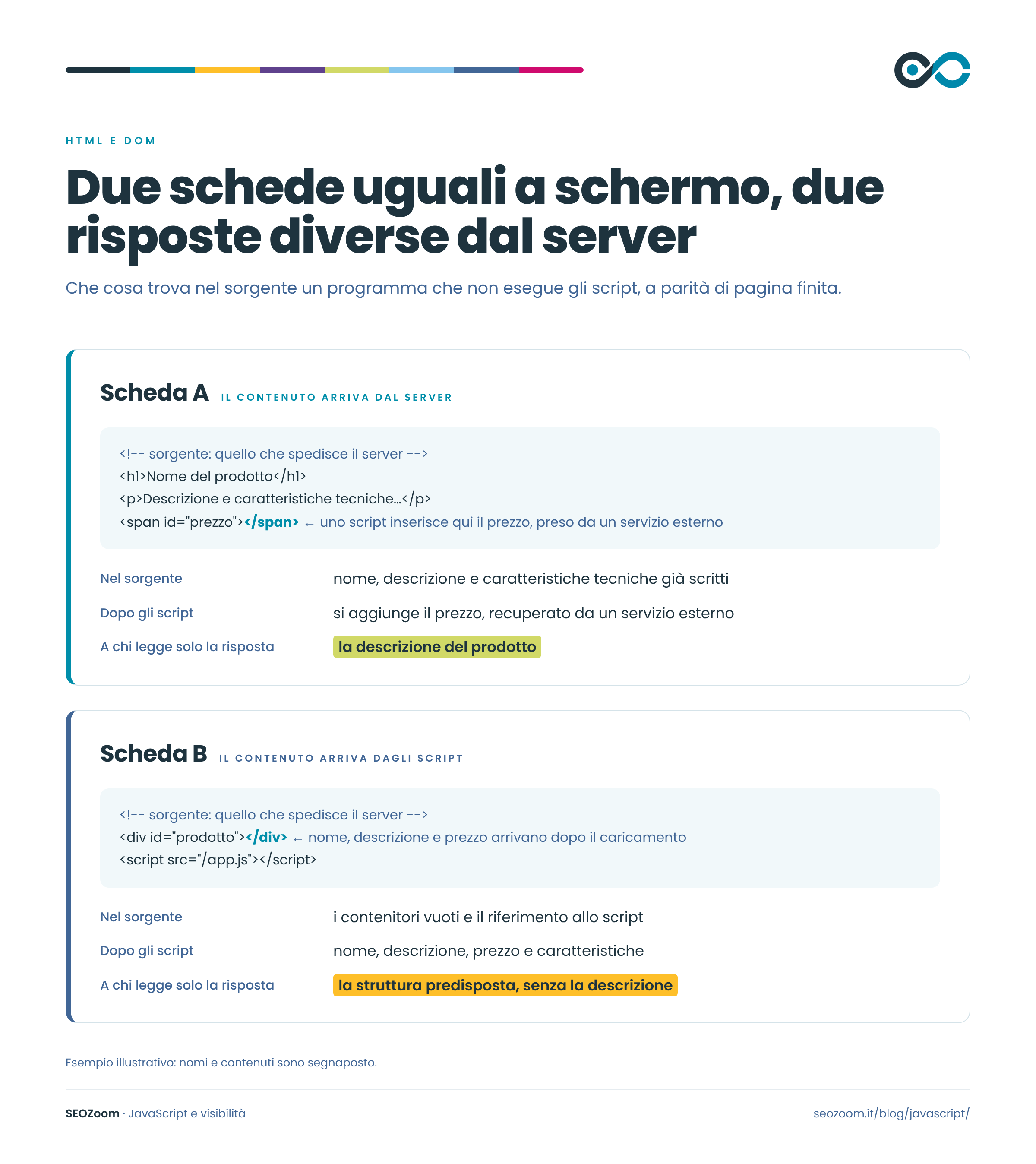
In Chrome, you can see the difference from the right-click menu. “View Page Source” shows the source code, meaning the HTML exactly as the server sent it; “Inspect” opens the developer tools on the DOM in its current state. If you find text in Inspect that isn’t in the source, it was added while the page was processed.
Information that exists only in the DOM isn’t a SEO problem in itself, because Google executes scripts and can read it. The comparison tells you what that information depends on: which parts the server delivers ready-made, and which ones require an extra step for any program trying to read them.
Where the Page’s HTML Comes From
The project decides where the HTML is generated, and that choice determines how much work is left to do after the response goes out. In Client-Side Rendering (CSR), the browser builds the page. The server returns a document with very few elements and references to scripts, and the text, navigation, and metadata arrive once the scripts run. With Server-Side Rendering (SSR), the application assembles the HTML on the server, for every request. In Static Site Generation (SSG), the system prepares the document in advance, at publishing time, and serves it as-is on every visit. Prerendering runs the application at publishing time and saves its initial state as static HTML. Even a WordPress site with a classic theme delivers pages assembled on the server, because the server processes the template and sends the visitor the finished HTML.
These strategies often coexist on the same site. A product page assembled on the server might leave updating the selected variant to JavaScript; an editorial site delivers ready-made articles and uses scripts for internal search and the menu. The framework’s name alone doesn’t tell you where the HTML is generated. React, which describes itself as a library, and Vue and Angular, which are frameworks, all support different rendering approaches, and Next.js, Nuxt, and the server-side rendering built into Angular are used to assemble pages on the server. A single-page application (SPA), an application that switches views without requesting a new document each time, can also deliver the first view’s content from the server.
In the specs for a site or a new feature, saying that a page “shows” a piece of information leaves open the choice that matters most. That information might arrive with the server’s response, load after the page opens, or appear only when someone triggers an action. On screen, the result can look identical, but it requires different operations from the programs retrieving the page, and some of those programs stop short.
The Moment Information Enters the Page
A script can change the page while it loads, when a person interacts with the interface, or based on conditions that only apply in that session, like a chosen location, access to a members-only area, or consent given to a cookie banner. When a piece of information arrives determines who gets to see it, more than the fact that JavaScript is what delivers it.
Not every reader of a page goes as far as your browser does, which runs every script and responds to every gesture. Google’s Web Rendering Service (WRS) also runs scripts, but it doesn’t click, scroll, or fill out forms. A program that only downloads the server’s response stops before any script runs. An agent working inside a browser can click, as long as it knows where. A page built entirely in the browser can still be readable to the search engine, and a page that’s already nearly complete from the server can still hide an important piece of information behind a button the WRS never presses.

Text That Appears After a Click
An accordion section, the kind that opens the answer when you tap the question, might already have the text in the document, or might receive it from a script during loading, leaving JavaScript to simply show or hide it. Or it might request the text from a service at the moment you click, meaning that text doesn’t exist in the page until then.
The visitor sees no difference, while the WRS processes the page without touching anything. Answers that are already in the document, or that get added during loading, become part of the rendered HTML and remain available to the search engine even when the section is closed; answers requested only on click never make it into that HTML. This applies to spec sheets that load when you open them, to the “Read all reviews” button that fetches reviews on demand, and to any content that waits for a gesture before it’s requested.
Lazy loading works in a similar way. Lazy loading delays downloading images and other resources until they’re about to enter the viewport, either with the loading="lazy" attribute or with the browser’s IntersectionObserver interface, and Google supports it. Elements that only load after a user scroll or a click risk never making it into rendering, and Google’s guide on lazy-loaded content flags these cases as ones to fix.
The impact of deferral on performance cuts both ways. Delaying images far from the top of the page avoids downloading files the visitor may never see; delaying the main image at the top of the page slows down Largest Contentful Paint (LCP), which is exactly the element the browser should show first. For lazy loading, the question that matters is what you’re deferring and what triggers its loading.
Data That Comes from Other Services
A page that shows updated information without reloading is usually talking to another service through an API (Application Programming Interface), the interface two programs use to exchange requests and responses according to set rules. In the browser, a script, for example using the fetchinstruction, calls the service’s address, known as the endpoint, receives the data, and inserts it into the DOM.
This happens across every kind of site. A retail chain with many locations pulls store addresses and hours from its management system, an education portal requests an updated course list from the platform that manages them, a news outlet loads related articles from a separate system, an ecommerce site updates price and availability from its inventory system. In all these cases, the content also depends on the service being queried. A request that fails, returns an error, or doesn’t complete in time during rendering leaves the page without the information it was supposed to add, and the search engine may end up processing an incomplete version.
Session conditions matter too. Your browser holds on to cookies, preferences, and logins, remembers the store you picked and the banner you already dismissed. A crawler typically arrives without any of that history, and for Google’s renderer, the lack of memory between one render and the next is documented behavior. It won’t see a price that only appears after you pick a store location, or content that unlocks once you accept cookies, and it ends up with a version of the page different from the one you see. An agent working inside a browser, on the other hand, can have an open session, even one where the person it’s working for is logged in. Content behind a login still stays out of crawlers’ reach, by design.

Sometimes the obstacle comes before execution even starts. A JavaScript file or API blocked by robots.txt, a firewall or CDN rule that rejects crawlers, an anti-bot system that demands verification, all of these prevent the page from downloading the resources it depends on. In those cases, the component itself is fine, it just never receives what it needs, so the diagnosis has to look at the resources too.
How Much Scripts Weigh on the Browser
The browser has to download, parse, and execute every script, and the loading mode determines how much that costs, with direct effects on site speed. With a classic script, inserted into the HTML with no attributes, the browser stops, downloads it, and runs it before continuing to read the document. With async the download happens in parallel and execution starts as soon as the file is available, with no guaranteed order; with defer execution waits until the document finishes loading and respects the order of the scripts. JavaScript modules are deferred by default.
Scripts can also tie up the browser’s main thread for a long time and delay the response to user input, the phenomenon measured by Interaction to Next Paint (INP). They affect LCP when they delay the appearance of the main content, and Cumulative Layout Shift (CLS) when they insert elements that shift content already on screen. These are the Core Web Vitals metrics. PageSpeed Insights shows them page by page, with real Chrome user data where available, and Lighthouse reproduces part of this in a lab setting.
Execution cost and information availability are separate properties, and performance metrics describe only the first one. A fast page can still depend on scripts for the text that matters, and a page with all its content in the HTML can still make the browser work too long before becoming usable.
What Google Does with Your Site’s JavaScript
Googlebot downloads the URL, parses the response, and extracts the links present in the HTML. Eligible pages enter a rendering queue, where they can sit for a few seconds or much longer, depending on available resources. The WRS, built on a headless version of Chromium, executes the scripts and produces the rendered HTML, which the engine then parses again to find additional links and uses for indexing.
Executing JavaScript doesn’t guarantee the outcome. An API request can fail, a required resource can be blocked, the code can hit an error before adding the expected information. And a page that renders correctly can still stay out of the index, because rendering is one step in the process, not the final decision.
In March 2026, Google removed a section on accessibility from its JavaScript SEO basics, explaining that loading content with JavaScript no longer makes Search’s job harder. The same documentation still lists server-side rendering and prerendering as a good solution, because not all bots can execute JavaScript. A page built in the browser does reach Google; the reasons for serving content from the server have to do with the other programs reading it, the ones that recommendation is aimed at.
The Conditions Under Which the WRS Works
The WRS works without memory. Between renders it clears cookies, local storage, and session storage, and it denies permission requests, like those for geolocation or notifications. Content that depends on a saved preference or a granted permission reaches Google in the version a first-time visitor would see.
Googlebot doesn’t download resources blocked by robots.txt, whether JavaScript files, stylesheets, or APIs, and the renderer is left without everything those resources would have produced. For each file, Googlebot also downloads only the first 2 MB and treats the rest as if it never arrived. For a typical HTML page, that threshold is far off, but a very large script bundle or a document embedding large amounts of data can get close to it.
Googlebot also caches resources aggressively, and the WRS can ignore the headers that control cache duration. It can happen that the server returns fresh HTML while rendering still uses the old script. The fix is fingerprinting, a file name that embeds a hash of the content, like main.2bb85551.js, which changes with every update, so Googlebot downloads the updated file as a resource it has never seen before. This also explains why an issue can show up, or disappear, later than the release that caused it.
Links Google Can Actually Follow
To crawl a page, Googlebot needs to know its address, which it gets from links, sitemaps, and other sources. From the HTML of the response, it extracts links during crawling; from the rendered HTML, it also extracts the ones a script added. A link created with JavaScript works like any other when it produces an <a> element with an href attribute containing a resolvable URL. A well-designed internal linking path counts for Google when the code declares it with real links.
| Link Markup | What Google Gets From It |
|---|---|
Sede di Milano |
A link Google can follow, with its anchor text |
|
A link Google can follow: the script handles the click, but the address stays in the href |
|
A URL Google can’t reliably extract, because there’s no href |
|
A URL Google can’t reliably extract, because the href contains an instruction |
|
A URL Google can’t reliably extract, because the element isn’t a link |
|
A form Google doesn’t reliably follow; Angular can add the href in the final DOM, which you check in the rendered HTML |
|
A box that’s clickable with the mouse, with no declared link |
A box built with <div onclick> takes you to a destination on click, when the script works, and for the engine it’s a box with no address. It also creates problems for people navigating by keyboard, because a generic element doesn’t receive focus and doesn’t respond to Enter unless a developer adds a role, the tabindex attribute, and key handling. An <a href> element solves both issues with the behavior HTML gives it by default.
Views That Deserve a URL
A category page that shows the first products and adds more with a “Load more” button only generates links to the following items after the click. The WRS doesn’t press the button, so those links don’t show up in the category’s rendering; the items can still be known to Googlebot through other routes, like the sitemap or links from other parts of the site. For content split across multiple pages, Google’s pagination guidelines call for stable URLs for each page, like ?page=2, linked to each other with real links. Infinite scroll can stay in place for people, as long as it isn’t the only route to the resources.
Filters are a different case. The combination a visitor selects in a catalog can stay an interface state, and keeping those combinations out of the index is a legitimate choice. On large catalogs, the query strings generated by filters can even multiply addresses and eat into crawl budget. A combination that answers a real search, one the project has decided to target, calls for a real page, with a stable address and a place in the navigation. The decision comes from the catalog’s structure and the demand you want to capture; JavaScript only decides whether that address exists.
In single-page applications, every view that needs to work as a standalone page needs its own URL. The browser’s History API updates the address without reloading the document, and it’s the recommended solution instead of fragments like #/prodotti, which Googlebot doesn’t resolve reliably. The server also has to be able to respond when an external link or a crawler requests that address directly, returning the right view instead of an error or the application’s empty shell.
Title, Canonical, and Noindex Written by Scripts
JavaScript can also set or change the information you’d normally associate with the page header: title, meta description, canonical, robots directives, structured data. Google accepts title and meta description set by scripts. The risk shows up in applications that switch views without loading a new document, where the content updates but the title and canonical still belong to the previous view, and the engine ends up receiving signals that don’t match the resource it’s processing.
For the rel canonical, the best place is the HTML. Google advises against using JavaScript to replace a canonical already present in the document with a different URL; when the value can only be calculated in the browser, the way to go is to leave it out of the HTML and let the script insert it. Two different values, one written by the template and one injected by a tag manager, put Google in front of conflicting signals. You can also declare the canonical in the HTTP header Link, and the hreflang in the sitemap as well, channels that don’t depend on scripts running. The mere presence of a URL in the sitemap, though, is a weaker canonicalization signal for Google than an explicit rel canonical.
With noindex, the direction of the change matters. Google may skip rendering when it finds the directive in the initial HTML, and the script meant to remove it to make the page indexable risks never running. Adding noindex with JavaScript during rendering to exclude a view that represents a nonexistent page, on the other hand, is a documented practice. The meta robots tag directives, in short, belong at the point where the response is generated.
Structured data can also come from scripts. Google Search processes JSON-LD generated by JavaScript, and the Rich Results Test, which renders the page, shows you the markup that reaches the engine. For product data, though, Google’s commerce systems set additional conditions on where that markup needs to be.
Status Codes and Pages That Don’t Exist
The HTTP status code is part of the server’s response. JavaScript executed on the server can help determine it, while JavaScript executed in the browser starts after the response has already arrived and can’t change it. A single-page application can end up showing “Page not found” while responding 200 OK, because the server delivered the application correctly, and only afterward did the script discover that the requested resource doesn’t exist.
Google can treat these as soft 404s: pages that say they don’t exist with a status code that says otherwise. Where the architecture allows it, the fix is having the server return the correct status. For applications that can’t do that, the documentation points to a JavaScript redirect to a URL for which the server responds with a 404, or a noindex added by the script to the error view. A temporarily out-of-stock product is a valid page that responds with 200. JavaScript-driven redirects, for that matter, are themselves a fallback solution, for cases where you can’t set up a server-side redirect or a meta refresh.
AI Answers, Inside and Outside Google
AI Overview and AI Mode are features of Google Search and use its core systems. To appear among the supporting links, a page needs to be indexed and eligible to show a snippet, with no special files or dedicated markup required, as Google’s guide to AI features explains. What the WRS manages to process feeds into the page representation that Search also uses for these answers. Eligibility is a precondition, not a guarantee that the page will be chosen as a source. Inside Google Search, for this reason, AI Overview and AI Mode remain within the scope of SEO.
Outside Google, the path changes from system to system. ChatGPT search, for example, rewrites the question into one or more targeted queries and sends them to the search providers it works with, as OpenAI’s documentation explains; for Enterprise and Edu accounts, OpenAI specifically names Bing. For us, the foundation of AEO, the work on the answers assistants build by searching the live web, remains presence in Search. An assistant that searches live often starts from traditional search engines, Google chief among them, whose index also feeds AI Overview and AI Mode. A page absent from the indexes won’t show up among the results an assistant picks its sources from.
Different is the case of model memory, meaning what a system learned during training and uses even without running a search. This is what we call GEO: the work on the identity and associations through which a model recognizes a brand. A change published today can be picked up by the next live search, while it only enters a model’s memory with a new training run, if it ever does. Model memory and assistants that don’t depend on Google Search are the territory of SEO for AI, the work that goes beyond SEO.
In all these paths, at some point, a program has to read the page. Assistants also use their own crawlers, which collect pages for search, for training, or open them on the user’s request, and these programs, unlike Google’s, don’t disclose what they do with the code.
The Programs Assistants Use to Access the Code
Every operator uses several programs, each with distinct tasks, and identifies them by name in the user agent, the signature every request presents to the server. Talking generically about “AI bots” hides this distinction, which determines exactly what you’re authorizing or blocking.
| Operator | Search Results | Model Training | Visits Requested by the User |
|---|---|---|---|
| OpenAI | OAI-SearchBot | GPTBot | ChatGPT-User |
| Anthropic | Claude-SearchBot | ClaudeBot | Claude-User |
| Perplexity | PerplexityBot | No declared program: PerplexityBot isn’t used for training | Perplexity-User |
Settings apply program by program. You can let OAI-SearchBot crawl your pages for ChatGPT search, a requirement for appearing in its results, while denying GPTBot the right to use them for training. Programs that act on a user’s request follow separate rules. OpenAI states that ChatGPT-User doesn’t crawl the web automatically and that, since these are actions initiated by a person, robots.txt rules may not apply; Perplexity writes that Perplexity-User generally ignores them.
OpenAI, Anthropic, and Perplexity say nothing on their pages about JavaScript execution. Information that exists only after scripts run therefore depends on a capability these operators don’t disclose, while information already present in the server’s response doesn’t depend on it. Text, links, and product data you want these programs to receive need to be in the HTML the server delivers.
The other access conditions still apply. The program still has to be able to request the page, and a robots.txt block or a CDN’s anti-bot rule stops it before that happens. The server can also return different HTML depending on device, language, or session, or respond to a crawler with a verification page. Server logs show what each program actually receives, and it’s worth checking them before drawing conclusions.
Same Product Data, Different Requirements
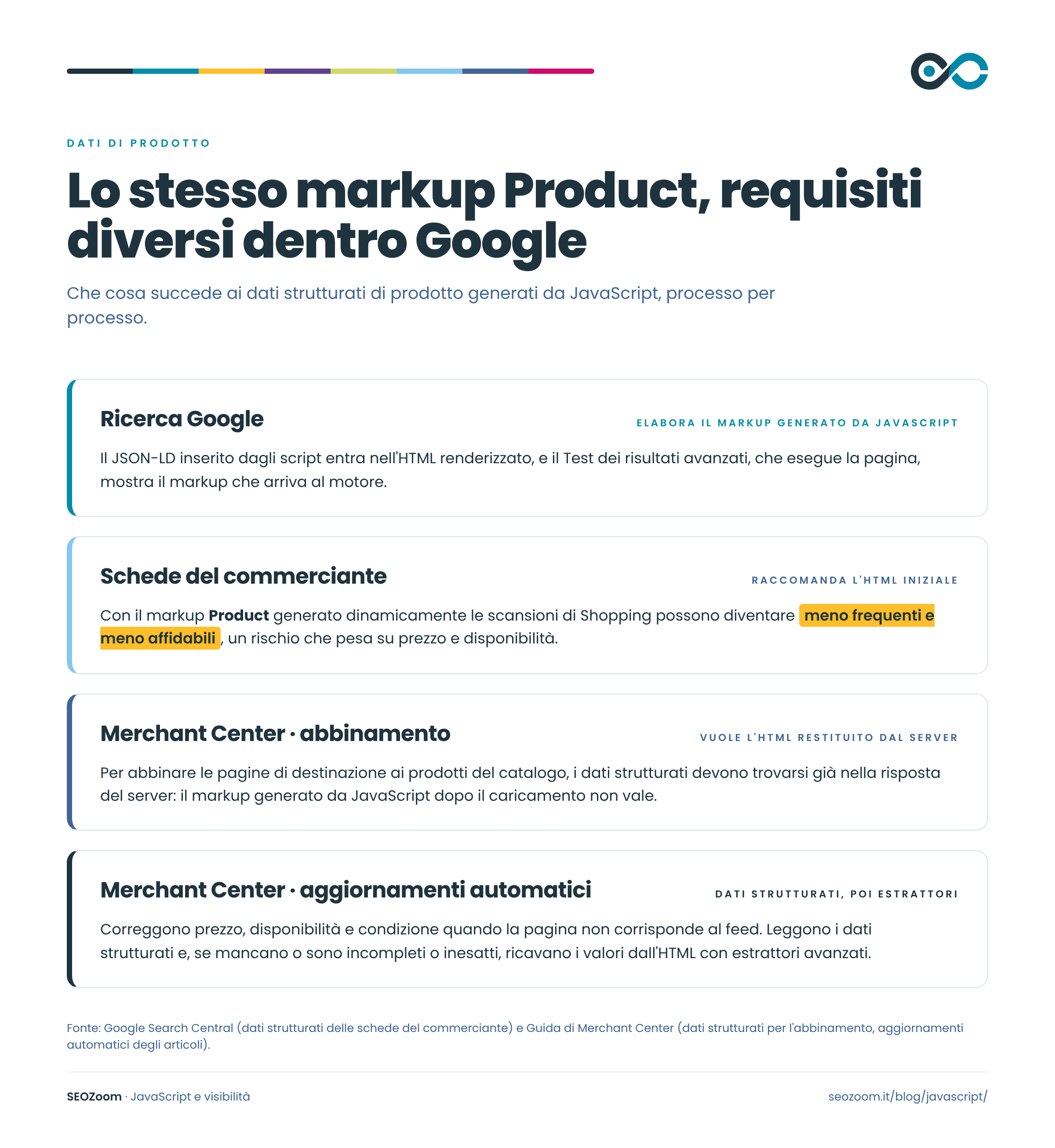
The differences between systems show up clearly in product structured data, even within Google alone. Search processes the markup Product written in the initial HTML as well as the markup generated by JavaScript during rendering. For merchant listings, though, the merchant listing structured data documentation recommends the initial HTML and warns that dynamically generated markup can make Shopping crawls less frequent and less reliable, a risk that weighs heavily on attributes that change often, like price and availability.
Merchant Center, the platform merchants use to send their catalog to Google, goes further. To use structured data for matching catalog products to landing pages, it requires the markup to already be in the HTML returned by the server, and specifies that it can’t be generated by JavaScript after loading. Automatic item updates, which correct price, availability, and condition when a page doesn’t match the feed, read structured data and, if it’s missing, incomplete, or inaccurate, fall back on advanced extractors that pull values from the page’s HTML.
A price published in just one way can satisfy Search while failing Merchant Center’s requirements. An ecommerce site that injects product JSON-LD through a tag manager or an app’s script will see the markup validated by the Rich Results Test, while Shopping may crawl it less frequently and less reliably, and Merchant Center won’t be able to use it to match pages to products.
Prices and Availability That Travel Outside the Page
Commercial information, after all, doesn’t travel through pages alone. Merchant Center receives data from merchants’ feeds and integrations, and that data feeds the Shopping Graph, which Google also builds AI Mode’s shopping experience on. For ChatGPT, OpenAI writes that results from its shopping assistant are organic and based on publicly available retailer sites, with product pages consulted directly; prices and descriptions can also come from structured metadata provided by first-party and third-party vendors, and for Shopify stores the catalog is already integrated.
The page and the catalog share the same source but reach their destination at different times. The site shows the price updated by the management system, while the feed holds the value from the last sync, and Merchant Center’s automatic updates exist to fix these mismatches.
An AI response showing a price different from the one on your site tells you a discrepancy exists, not which source the assistant pulled the value from. It may have read the page, a catalog, or an intermediate source, and citing the URL doesn’t certify the path of every single data point. For an error in the feed, you fix the catalog sync, where page rendering plays no part. And a technically flawless page, on the other hand, doesn’t force an assistant to use the most recent version of the data.
AI Agents at Work on the Site
A crawler retrieves a page to read it. An agent, by contrast, carries out a task for someone, and to do that it has to use the site: select a filter, choose a variant, fill out a form, make a booking, add a product to the cart. ChatGPT’s agent, for example, works with a visual browser, a text browser, a terminal, and direct access to APIs and connectors; it asks for permission before actions with consequences, like a purchase, and for account access it asks the person to step in, leaving them in control of the browser. Google’s guide on AI features describes agents that, within the browser, can inspect the DOM, interpret the accessibility tree, and analyze visual renderings, meaning screenshots of the page.
JavaScript dependency shows up in different places depending on the path an agent takes. An agent working in a browser faces the same conditions as any other reader: scripts to execute, requests that need to succeed, sessions, permissions, and access. On top of that, it has to interpret the interface to figure out where to act. An agent that goes through a direct integration can complete the task without touching the page at all, so it depends instead on the functions and data the integration exposes. The same guide covers protocols like the Universal Commerce Protocol, which will let Search agents do more, and web.dev describes WebMCP, a proposed standard still in development that lets a site declare its actions to agents through HTML or JavaScript annotations, with user confirmation required for sensitive operations.
Commands an Agent Recognizes
An agent relies on a machine-readable representation of the page. It can work from the DOM, from the accessibility tree (which exposes role, name, and state for each element), or from screenshots interpreted by a vision model, a slower and more expensive path that web.dev’s guidance for sites used by agents treats as a fallback. Many agents combine these approaches within a single task.
A <button> declares its own role on its own, and a field linked to a <label> tells the agent what information it expects. A <div> turned into a button by a script responds to the mouse but stays silent in the accessibility tree until a developer gives it a role, a name, and keyboard handling. These are the same details a screen reader needs, and the web accessibility work that makes them available to people makes them available to agents too.
Scripts also add obstacles after the page loads. A transparent layer placed over the page, like the ones used by some popups or banners, covers the elements underneath, and agents can end up discarding nodes that are covered this way. An “Add to cart” button that shifts position from one product page to another confuses agents working from screenshots. The hand-shaped pointer that appears over a clickable element, set with the CSS property cursor: pointer, is a strong signal to them that an action is possible.
Confirmation That an Action Succeeded
After clicking a button, an agent has to figure out what happened. JavaScript updates the cart counter, flags a form error, or changes availability when you pick a size. If the result only shows up as a color change or an animation, a system working from the accessibility tree never sees it, and the agent is left without the information it needs to move forward.
The WCAG 2.1, the W3C’s accessibility guidelines, address this in success criterion 4.1.3 on status messages: messages about the outcome of an action need to be identifiable by assistive technologies through roles or properties, without moving focus. The W3C’s examples include the message that updates the item count in a cart and the one that flags form errors. A script producing an update can expose it this way too, with a role such as status or a region aria-live.
What matters in the end is the complete operation. A correctly coded button can still fail to complete a purchase because a server request fails. An accessible form can stall when a session expires. An agent working from screenshots can miss an element that moves while it’s trying to select it. These are different problems, and each one calls for its own check.
How to Find Out What Depends on Scripts
The work starts from an observed symptom: a page missing from the index, text that Google doesn’t show, an ignored canonical, an operation an agent can’t complete, or an assistant reporting an outdated price. JavaScript is one possible cause among others that technical SEO keeps an eye on, like a URL that was never discovered, a blocked request, or a page the search engine fetched and chose not to index. Checks exist to separate these causes, and each one answers a specific question, without proving more than it actually measures.

In the Browser, with Chrome’s Tools
Comparing source and DOM pays off most on a specific element. Copy a sentence from the description you’re interested in, search for it in the source and then in the Elements panel of Inspect: finding it only in the second place means a script added it. For text that appears after you open a section, the Network tab shows the request triggered by the click, where it went, and what came back, so you can tell whether the text comes from your own server, an internal API, or a vendor’s service. The Console tab collects JavaScript errors, and a script that stops halfway leaves blank everything it was supposed to write after that point.
A 403 response on a resource, in the Network tab, points to a different problem than a script failing to insert a description, because in that case the resource never arrived at all. And content already present in the initial HTML doesn’t depend on what runs in the browser, no matter what happens afterward.
Turning off JavaScript in Chrome’s site settings shows you what’s left of the page without scripts. It’s a useful test for spotting dependency, but it doesn’t simulate Googlebot, because a server can respond differently to different programs, and the WRS executes scripts under its own conditions.
For the agent side of things, the browser is enough to get started. Tab through the steps that matter, from choosing a variant to checkout, and watch where focus fails to land. In Inspect, the Accessibility panel shows you the role and name the browser calculated for each element, which is what a system working from the accessibility tree receives. A test with a specific agent will show you where that agent gets stuck, and a different agent may get stuck somewhere else entirely.
Google’s Version, in Search Console
Search Console’s URL Inspection tool, with its live test, shows you the rendered HTML, a screenshot, any page resources it failed to load, and JavaScript console messages. Text missing from the source but present in the rendered HTML from the test reached Google, at least under those conditions. Text missing from both shifts the investigation to the scripts that should produce it, the API requests, blocked resources, and the conditions loading requires.
The indexed version may have been captured before the live test, which describes the page as it is now, and the tool keeps the two separate. A successful render alone doesn’t determine indexing or rankings, and for a page excluded from the index, the Search Console report states the reason, which may have nothing to do with JavaScript.
The Rich Results Test renders the page and shows you the structured data that reaches the engine, including data inserted by scripts. For product markup, read the result alongside Merchant Center requirements, which are stricter about the HTML returned by the server. In Search Console‘s crawl stats, finally, you find Googlebot’s requests broken down by file type, including JavaScript, and by server response, and you can see whether script files return errors or absorb an unusual share of requests.
Across the Whole Site, with Two Crawls
Manual inspection shows you how a page template behaves. For many URLs that share templates and components, you need a full-site crawl. In SEOZoom, you run it with the SEO Spider. When you set up a new crawl, there’s an “Enable JavaScript rendering” option, which the platform flags with the note “The crawl will be slower but this is necessary for websites using JavaScript frameworks like React or Angular,” and the crawl summary shows “JS Rendering: Yes” or “No.”
Run two crawls of the same scope, one with the option on and one without, export the grids to xlsx or csv from the Title, Description, H1, H2, Canonical, Links, Directives, and Hreflang tabs, and compare them. You’ll see URLs found only through rendering, titles or canonicals that change, and directives that appear or disappear after scripts run.
A difference between the two crawls tells you where to look, but you need to find the cause on the page itself. First, though, the crawls need to be comparable: run at the same time, over the same scope, and completed in full. We saw this with a large ecommerce site, where two crawls stopped by the page limit before covering the whole site had collected different sets of URLs, and incomplete crawls couldn’t tell us whether the difference came from rendering or something else. For a URL found only in the crawl with scripts executed, trace it back to the page that links to it and look at how the link is created. A link inserted by a script indicates a JavaScript dependency for that navigation path, and the engine may still run the script or learn the address from a sitemap. A title or canonical that changes between the two crawls likewise points to a page worth opening, to find out whether a script or a server response that differs between crawls is behind the change.
Server Logs and Assistant Responses
Server logs record the requests reaching your infrastructure, and this is where you see assistant programs passing through, with the URLs they request, the responses they receive, and any JavaScript files or APIs they download. User agents can be spoofed, so to verify a request, check it against the IP ranges OpenAI and Perplexity publish for their programs. And a script showing up as downloaded in the logs doesn’t prove the program actually ran it.
On the assistants’ side, you look at the responses. In SEOZoom, the AI Prompt Tracker follows the prompts you choose and, for each engine, shows you the generated response text and the “Sources Used.” It tells you what information appears and which pages the assistant cites for the questions that matter to your brand. The response doesn’t reconstruct the technical path behind each piece of data. An outdated price is the starting point for an investigation that runs through the page, the feed, and the logs, and doesn’t always lead to a single source. And a response that changes after a site update doesn’t by itself prove the update caused it, because responses vary on their own too.
Which Fix to Choose After the Diagnosis
Diagnosis can turn up a link created only after a click, an API request that fails during rendering, an application that leaves all public pages to be built in the browser, or a feed that doesn’t match the site. The consequences look alike, since in every case information fails to show up where it was expected, but the fixes involve different components and different people. A problem limited to a single widget doesn’t justify an architecture overhaul; a targeted fix isn’t enough when every page in a section is built in the browser.
Fixing a Single Component
With the main content already in the server response and navigation reachable, the fix is limited to that one component, and JavaScript keeps handling the interactive features. An element that acts as a link only with onclick becomes a real <a href>, and the script still handles the click as before. A section that only requests its content on click can instead receive it already in the document and just display it, when that information needs to be retrievable without interaction. For a third-party widget, how much room you have depends on the provider, since some offer server-side integration or an API for pulling content into the page, and others don’t, and choosing a provider also means deciding which programs will be able to read that content.
Content added automatically on load, which appears in the rendered HTML in URL Inspection, isn’t a problem for Google. Moving it into the initial HTML is a decision that concerns other readers: programs that don’t declare whether they execute JavaScript, and processes like Merchant Center that need the data in the server response.
For instructions to search engines, fix the issue at the source. Keep the canonical in one place, whether that’s the template or the tag manager, and remove noindex from the code that generates the response for a page meant to be indexed. For agents, roles, labels, and status messages are interface work, since server-side rendering delivers the HTML first, and the checks are whatever the component declares.
A New Way of Building Pages
An application that returns nearly empty HTML for many public pages is a different case. When content retrieval depends systematically on execution in the browser, and a diagnosis has shown concrete problems, like text missing from the rendering, undiscovered URLs, or product data that doesn’t satisfy Merchant Center, the fix needs to target how the pages are built.
| Strategy | Where and When the HTML Is Generated | What the Server Response Contains |
|---|---|---|
| Client-Side Rendering | In the Browser, While Scripts Run | The App Shell, References to Scripts, and the Parts the Developer Chose to Include |
| Server-Side Rendering | On the Server, with Every Request | The Document Assembled for That Request, with Content the Application Inserts on the Server |
| Static Site Generation | On the Server, at Publication Time | The Document Prepared in Advance, Unchanged Until the Next Build |
| Prerendering | At Publication Time, by Running the Application | An HTML Snapshot of the Application’s Initial State |
| Dynamic Rendering | On a Service That Runs the Application for Crawlers | A Prerendered Version for Crawlers, the Browser-Built Application for People |
With server-side rendering, the content the application decides to insert is already in the response, and interactive features activate afterward, in the browser. Static generation suits content that can be published like pre-composed documents, and requires regenerating pages when information changes; where the framework supports it, incremental regeneration updates individual pages based on expiration or invalidation rules. Architectures often combine these strategies, and the choice depends on the nature of the content, how often it changes, and which features need to stay in the browser. The web.dev guide on rendering on the web compares these strategies and the costs each one shifts between server and browser.
A page composed on the server doesn’t necessarily contain everything the visitor sees. Availability and variants retrieved by a script after load still depend on execution, even inside an SSR architecture, and the diagnosis treats them as such.
Dynamic rendering is documented by Google as a workaround, not recommended long-term because of the complexity and resources it requires. It’s generally not cloaking as long as crawlers and people receive similar content, while serving entirely different content is; its real cost lies in keeping two versions of the same site aligned. A rendering change, too, often comes with a framework change, and URLs, redirects, and canonicals need to stay consistent with the published resources, because complete HTML doesn’t make up for URLs changed without a plan.
The Cost of Moving Information to the Server
Moving information from the browser to the server also changes how it gets updated. A price written into the HTML becomes retrievable without executing JavaScript; but if that document stays cached longer than the prices remain valid, the site distributes outdated values to every program reading the response. Along with the rendering decision, you need to settle cache duration, invalidation rules, and data source, or fixing one dependency introduces an error into the published information.
On the server, rendering requires resources to compose the pages, and caching reduces that load. The browser, for its part, still has to execute JavaScript to make the application interactive. That’s hydration, the step where scripts connect state and behavior to the HTML that arrived from the server. Hydration assumes the DOM produced on the server matches what the application expects, and when the two don’t match, errors or unexpected changes show up at activation. Some architectures reduce the JavaScript executed in the browser by activating it only in the components that need it, through partial or progressive hydration and so-called islands; web.dev warns that partial hydration is difficult to implement.
Before changing your rendering approach, line up the dependencies you want to remove against the responsibilities you’re taking on in exchange, from caching to server load to keeping what the server composes aligned with what the browser activates.
Core Content and Extra Features
Progressive enhancement is the principle of keeping a baseline of essential content and features available to as many people as possible, and leaving the rest to JavaScript, where the browser can run it. The menu already contains the links, and the script opens it; the form declares fields and labels, and the script adds instant validation; the catalog makes later pages reachable through stable URLs and also offers infinite scroll on top.
Not every application can work without JavaScript, and no one expects that from a configurator, a dashboard, or a members-only area. But public information that needs to be found through search has different requirements than features reserved for people actively using the application, and a configurator page can still expose the product’s features outside the interactive component.
Once the diagnosis is done, you give the developer precise decisions. Which information needs to be in the server response, from text to links, from directives to product data for Merchant Center. Which URLs need to be reachable without a click. Which controls need to expose role, name, state, and outcome messages for agents. And, when the problem is a price or availability mismatch between the site and external systems, catalog synchronization needs fixing before touching the rendering at all.
JavaScript dependency changes as your site evolves. A new plugin, an update to a component or framework, or an external service added to the page can all shift the moment when a piece of information becomes available. After any release that touches content production or navigation, repeat the check that originally surfaced the issue on the affected pages: rendered HTML in URL Inspection for text, the path that makes a link reachable, the feed and data in Merchant Center for product information, the full operation for an agent.


 Verified reviews on Trustpilot